

Overview
There are multiple ways to upload files to a page. The simplest way is clicking the F File button within the text editor to insert a file exactly where your cursor is currently positioned. If you expect to have a long list of files that may need to be rearranged, the content chunk option is the best way to go. Do this by clicking the Add File attachment button at the bottom of the page.
To insert a file within a text area:
Image

To add a file attachment content chunk:
Image

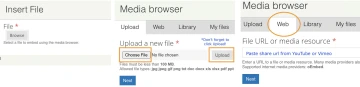
Both of the methods shown above will launch the file media browser window.
- Click Browse to start the process.
- The Upload tab is used to upload a file from your computer.
- The Web tab is used to embed a video from YouTube or Vimeo by copy/pasting the video share url from the media provider
- The Library tab is used to find previously uploaded files to insert/embed.
Image
For each file you upload, some associated fields are available to you to fill out, but none of them are required. These include:
- A name for the file
- If you leave this empty, the file name itself can serve as your title. This option works best of your file is named clearly, e.g. application_2020.pdf
- A description of the file
- The File itself
- Formats allowed are txt, pdf, xls, xlsx, doc, and docx. If another format is needed for your department, please contact the web team.
- A preview image
- Regardless of the dimensions of the image you upload, this will be automatically cropped to a square that displays at 220px by 220px
Image
